Results & Measurements
Understanding and working with your takeoff results.
Results Panel
The Results panel shows all measurements from your takeoff session - both AI-detected items and manually drawn measurements.
Accessing Results
- Click Results in the left sidebar
- Or press R to toggle the results panel
Results Organization
Results are grouped by category:
| Category | What It Contains |
|---|---|
| Doors | All door detections with count and sizes |
| Windows | Window detections with dimensions |
| Walls | Linear wall measurements (interior/exterior) |
| Rooms | Area calculations for enclosed spaces |
| Custom | Your manually drawn measurements |
Understanding Measurements
Measurement Types
BuildVision tracks three types of measurements:
Count (EA)
- Individual items like doors, windows, fixtures
- Shows quantity and dimensions when available
- Example: "12 doors (3' x 7')"
Linear (LF)
- Length measurements like walls, trim, piping
- Shows total linear feet/meters
- Example: "450 LF interior wall"
Area (SF)
- Square measurements like floor area, roofing
- Shows total square feet/meters
- Example: "2,400 SF floor area"
Reading the Results Table
Each row in results shows:
| Column | Description |
|---|---|
| Item | What was detected/measured |
| Type | Count, Linear, or Area |
| Quantity | Total measurement value |
| Unit | EA, LF, SF, etc. |
| Details | Dimensions, notes, or breakdown |
Spreadsheet View
The Spreadsheet View gives you a full-width table of all your detections so you can quickly review and adjust quantities before exporting.
Opening the Spreadsheet View
Click the expand button in the sidebar — it's to the right of the History label in the sidebar header.
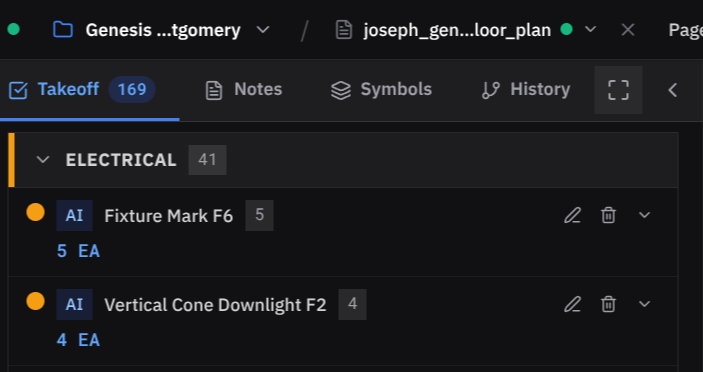
This opens the spreadsheet view, showing every detection as a row with its quantity, type, and dimensions.
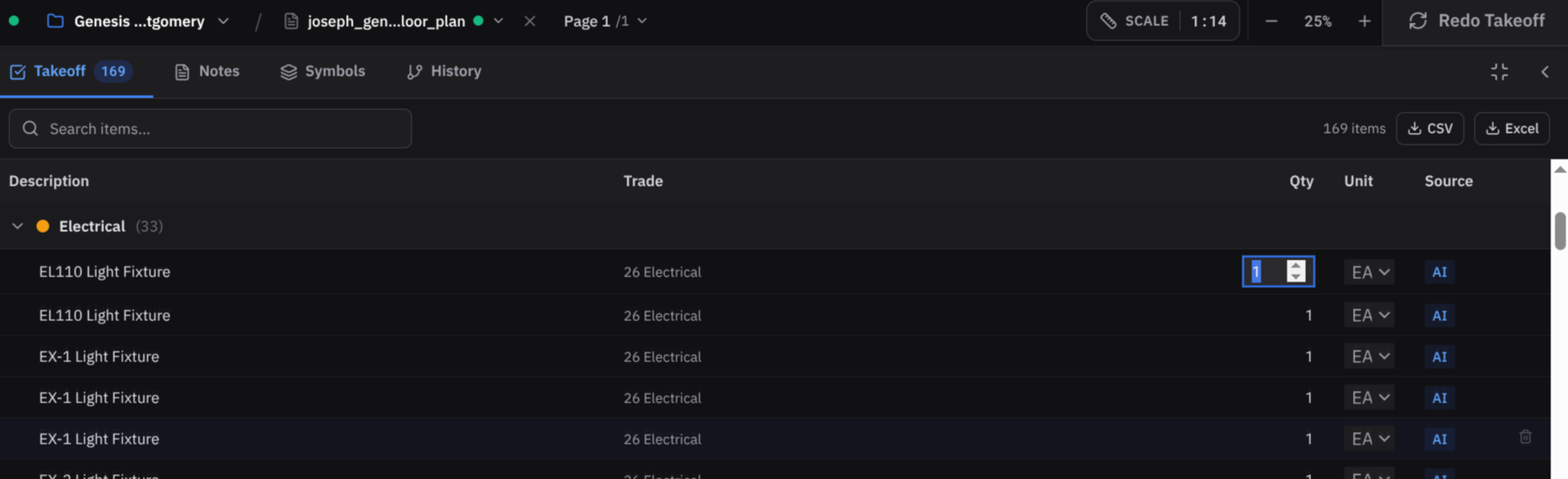
Adjusting Quantities
In the spreadsheet view you can directly edit any quantity:
- Click the quantity cell for the item you want to change
- Type the new value
- Press Enter to confirm — the change applies immediately
This is the fastest way to do a bulk review — scroll through all detections, override anything the AI got wrong, and move on.
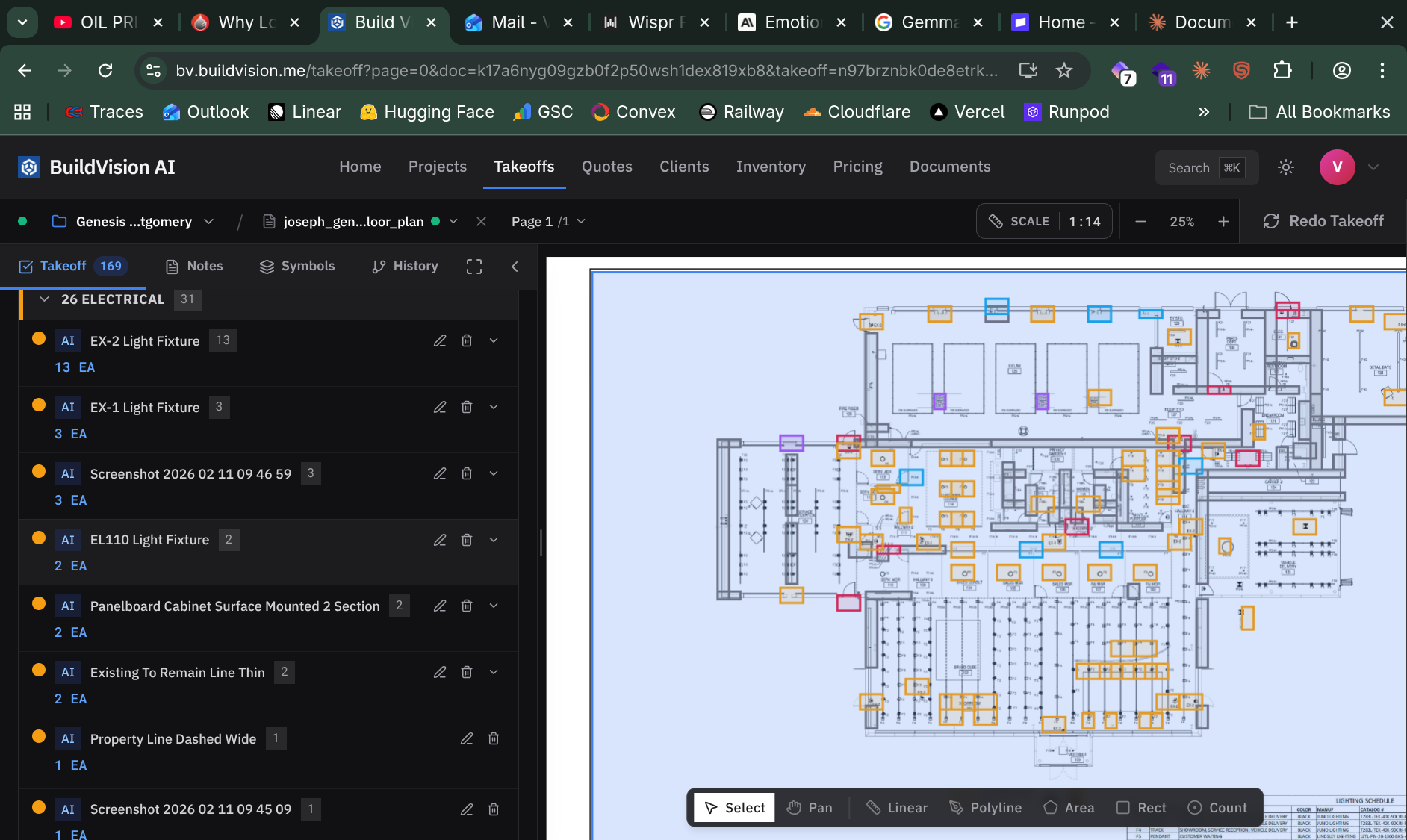
Collapsing the View
When you're done, click the same expand button again to collapse back to the standard sidebar view.
Exporting to a Quote
Once your quantities look right, click Export in the toolbar and choose Export to Quote to send everything directly into the Quotes module as line items.
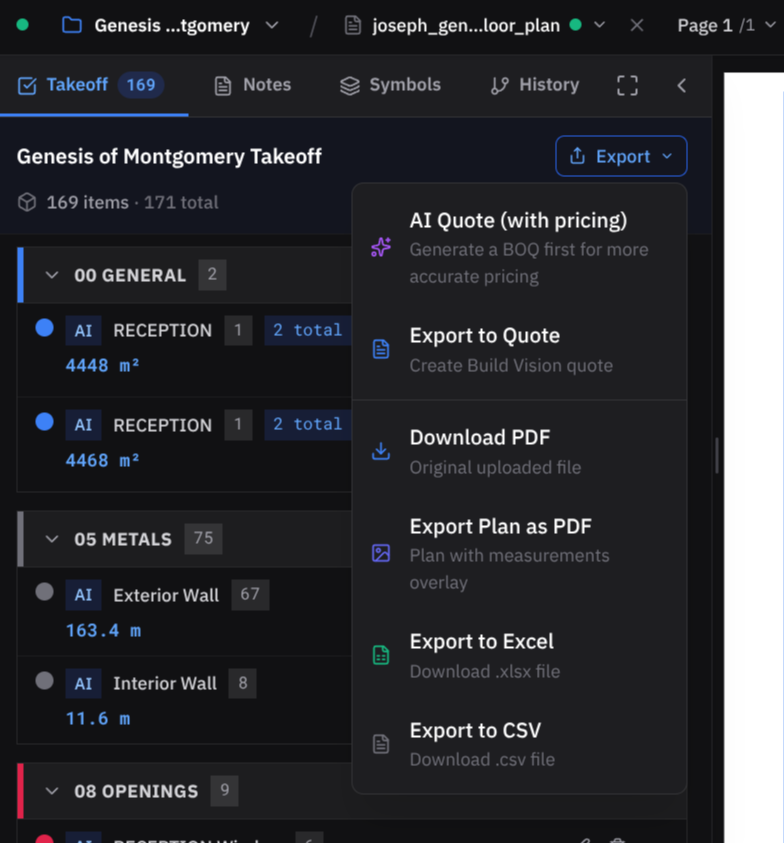
Quantities you adjusted in the spreadsheet view carry through to the quote automatically — no re-entry needed.
Interacting with Results
Select and Highlight
Click any result row to:
- Highlight that item on the plan
- Zoom to its location
- Select it for editing
Edit Measurements
Right-click a result to:
- Edit dimensions or quantity
- Delete the measurement
- Add notes for reference
- Change category for organization
Multi-Select
Hold Shift or Ctrl/Cmd to select multiple items:
- Delete multiple items at once
- Export selected items only
- Bulk edit properties
Room-by-Room View
For area takeoffs, switch to room view:
- Click the Room View toggle in Results
- See measurements organized by room/space
- Each room shows:
- Floor area (SF)
- Perimeter (LF)
- Items within that room
Room view is helpful for estimating by space - like calculating flooring, paint, or trim for each room.
Filtering Results
By Type
Use the filter buttons to show only:
- All - everything
- AI Detected - automatic detections
- Manual - your drawn measurements
- Accepted - approved items
- Pending - items needing review
By Category
Click category headers to expand/collapse:
- Click Doors to show only doors
- Click Walls to show only walls
- Collapse categories you don't need
Search
Use the search box to find specific items:
- Search by name ("bedroom", "entry")
- Search by dimension ("3'0"")
- Search by notes you've added
Totals and Summary
At the bottom of Results panel:
| Summary | Shows |
|---|---|
| Total Count | Sum of all counted items |
| Total LF | Sum of all linear measurements |
| Total SF | Sum of all area measurements |
| Items | Total number of line items |
Click View Summary for a printable breakdown by category.
Accuracy Tips
Review AI detections before export:
- AI is 85-95% accurate on clear plans
- Always spot-check a few measurements
- Look for missed items (AI indicator shows coverage)
Verify scale on random measurements:
- Pick a known dimension (like a door)
- Measure it with the ruler tool
- If it's off, recalibrate and re-run detection
Never export results without at least a quick review. Even small scale errors compound into big quantity mistakes.
Next Steps
- Exporting Data - Get your quantities out of BuildVision
- Manual Editing - Adjust and refine measurements
- Creating Quotes - Turn takeoff into an estimate