Run a Takeoff in BuildVision AI
This is the fastest path from a fresh project to measured quantities: create the project, open a plan, and let detection do the counting. Every step below is the exact flow inside the app.
Step 1 — Create a new project
From the Projects tab, click New Project in the top right.
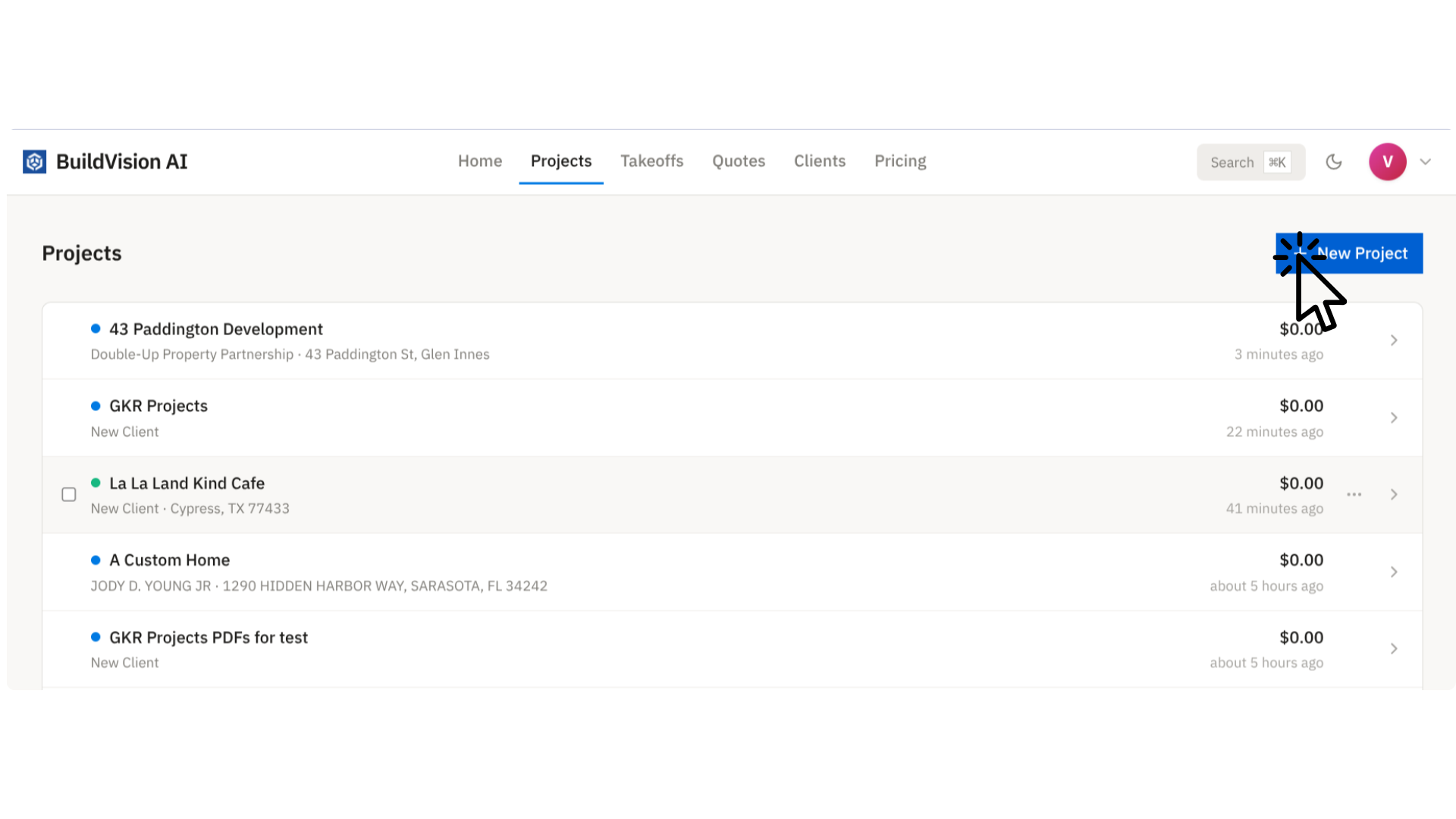
In the dialog, drop in a PDF of your plans (we'll create the project and upload the set for you), or name the project manually and pick a client. Click Create.
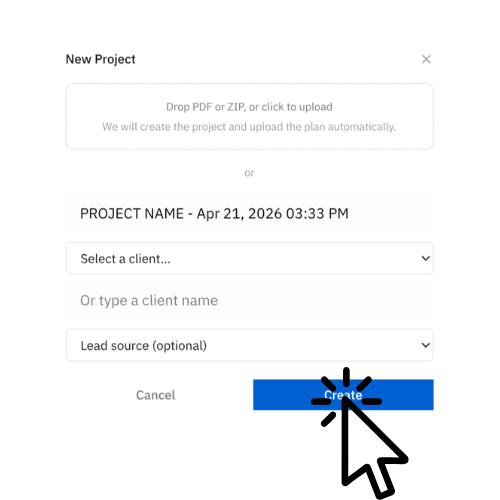
Tip: If you drop a PDF here, BuildVision AI auto-creates the project, ingests every page, classifies each sheet (Architectural, Structural, Electrical, Civil…), and gets the set ready for takeoff while you keep working.
Step 2 — Open a plan from the project's Documents
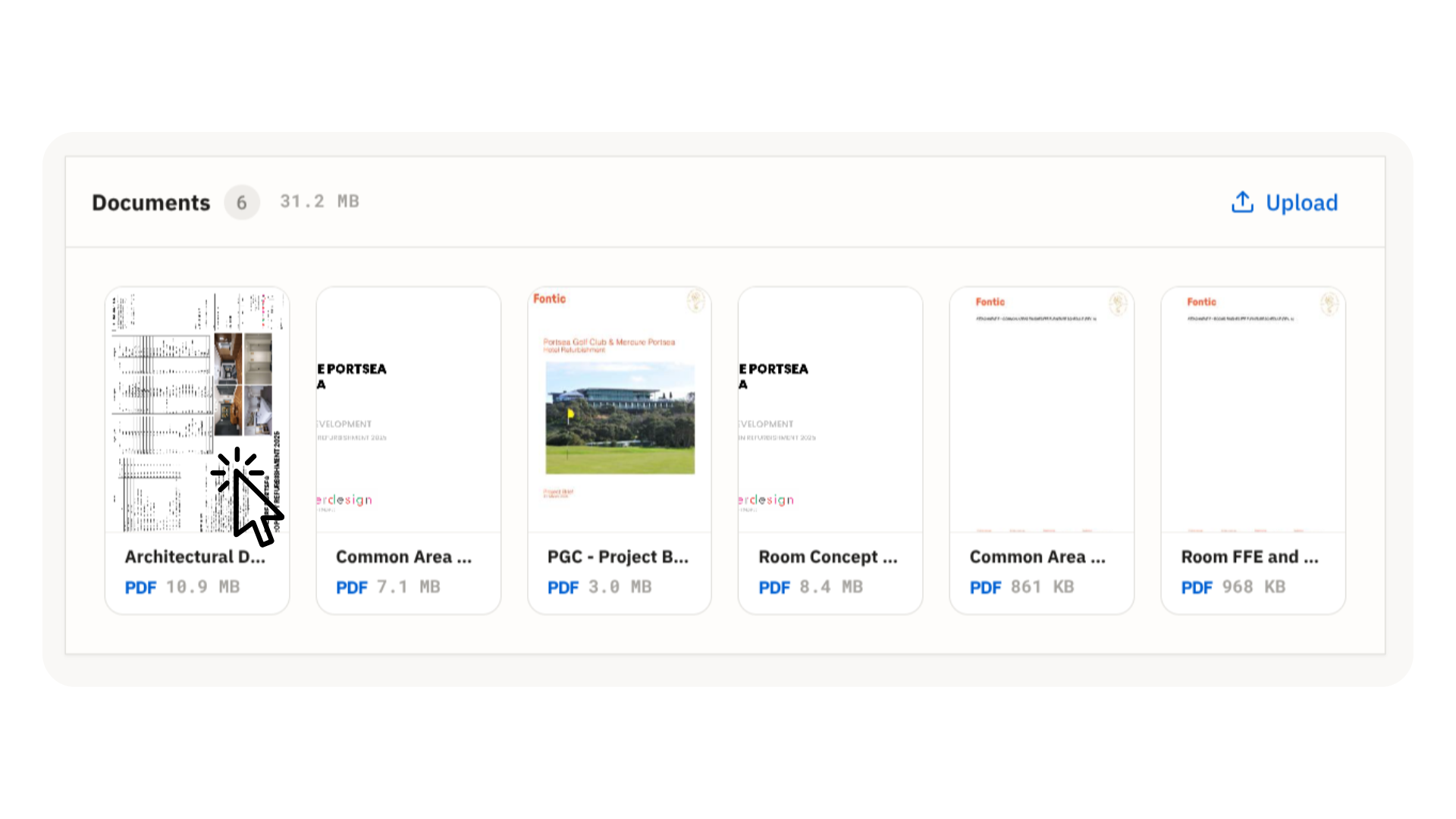
Inside the project, scroll to the Documents section. Click the plan you want to measure.
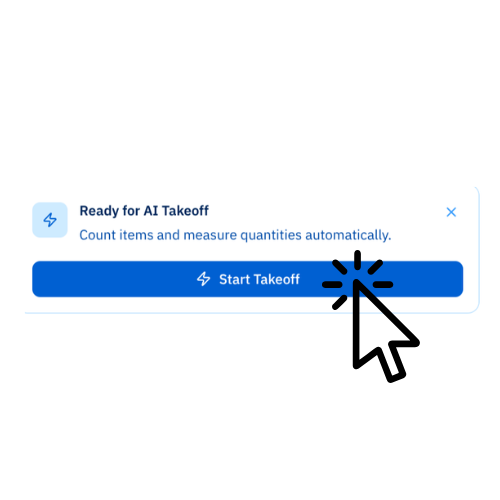
The document preview opens with every page on the left and the Document Details panel on the right. Once the file is processed, a Ready for AI Takeoff callout appears at the bottom of the panel.
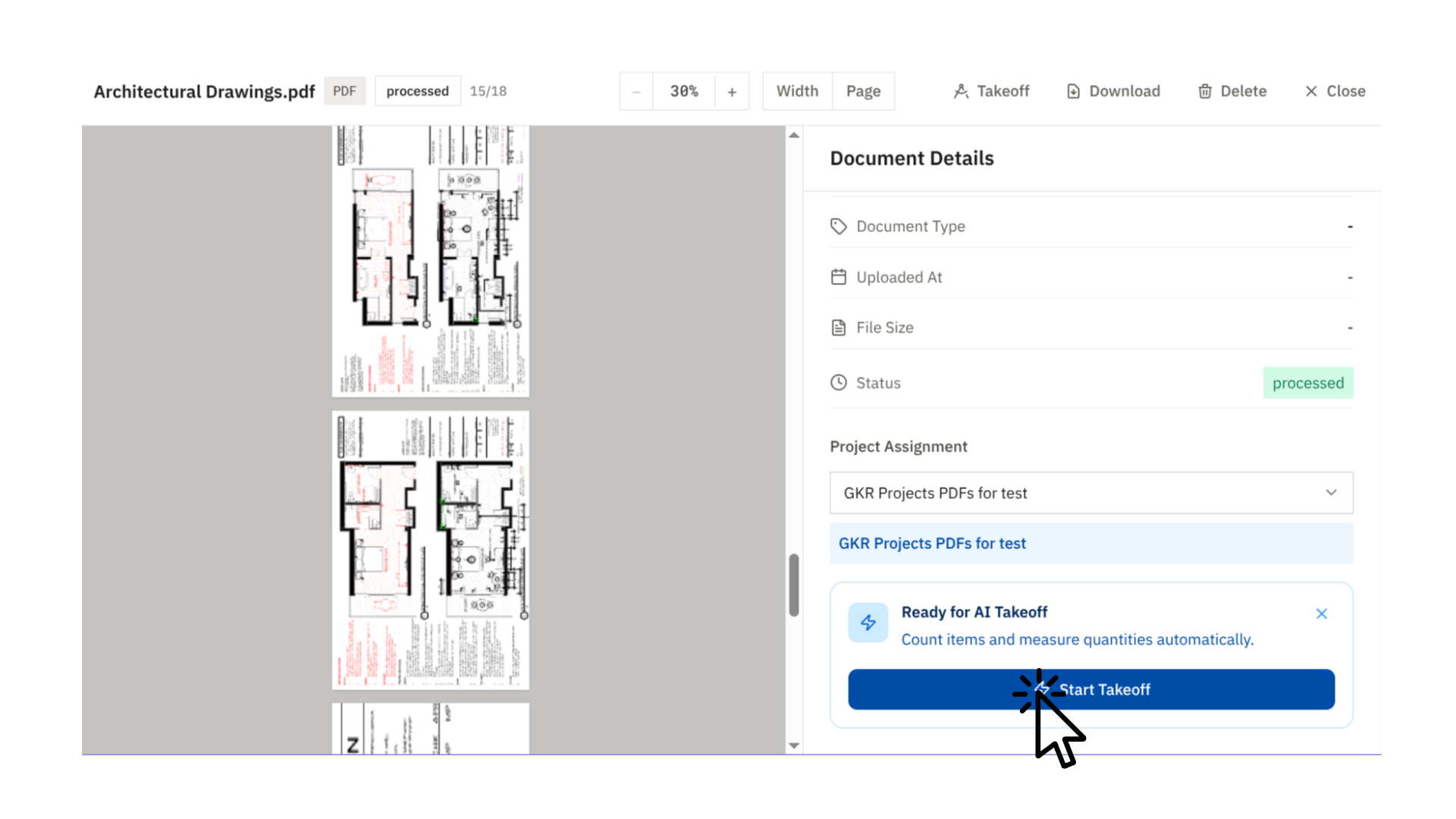
Click Start Takeoff.
Step 3 — The takeoff editor
You're now in the takeoff editor. The active page is in the center, page navigation is on the left, and the toolbar (zoom, fit-to-width, page jump, Detect) sits at the top.
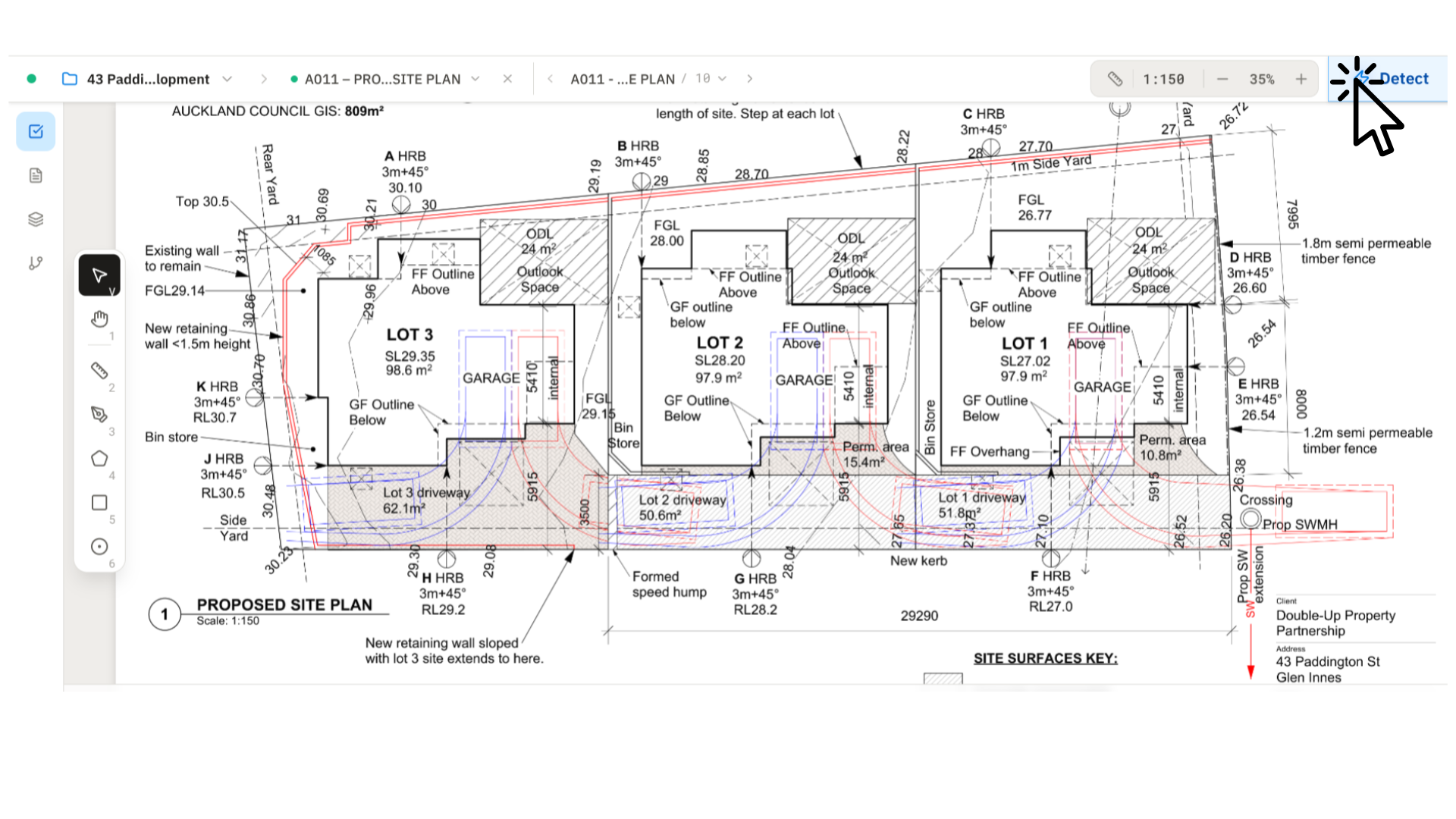
To run AI detection, click Detect in the top-right.
Step 4 — Configure the detection
The Detect panel opens on the right and auto-fills the fields based on the sheet you're viewing.
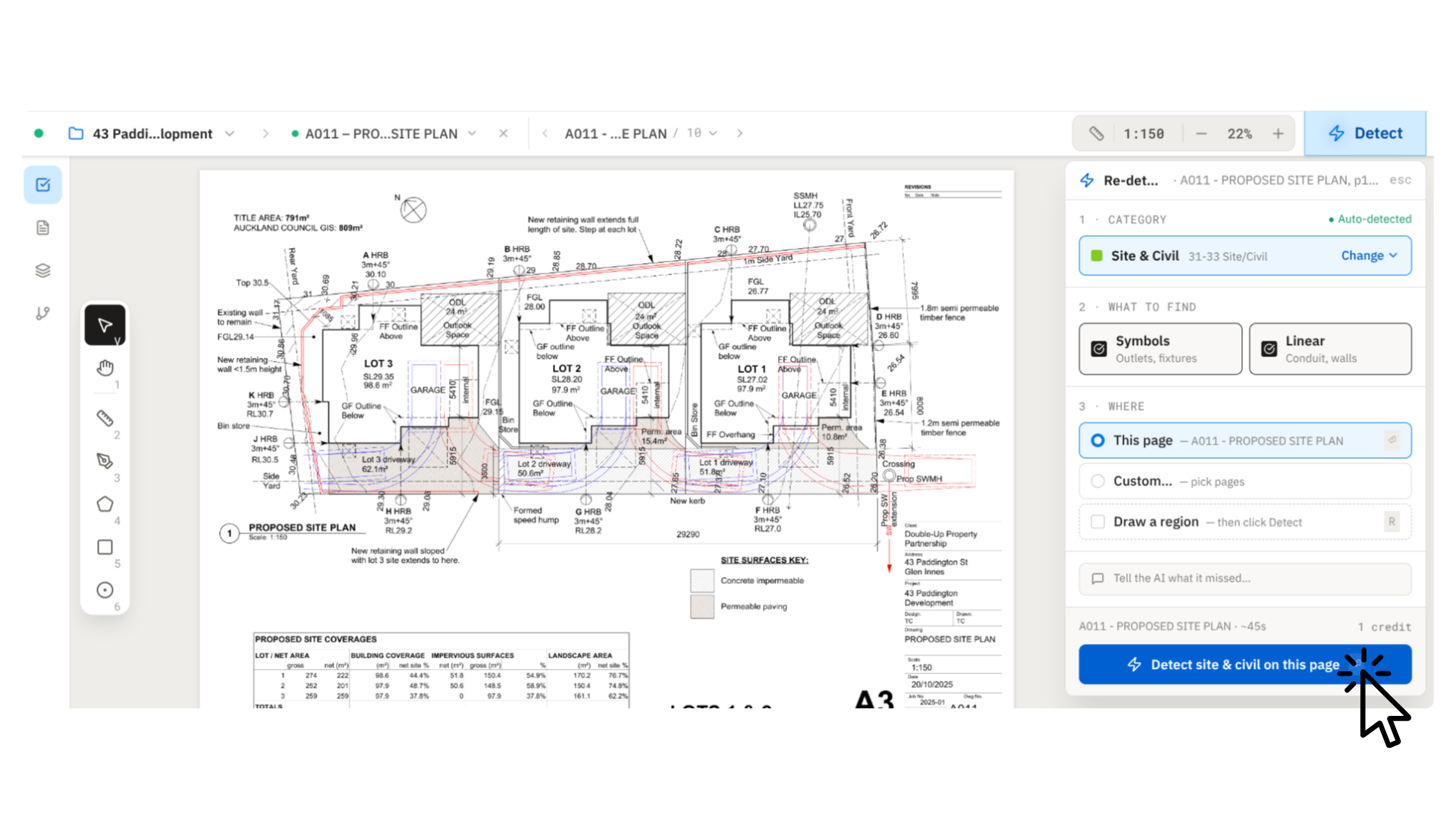
The panel has three decisions:
- Category — auto-detected from the sheet (Site & Civil, Electrical, Structural, Architectural…). Hit Change if it's wrong.
- What to find — pick Symbols (outlets, fixtures, doors, windows) and/or Linear (conduit, walls, piping). Both can be selected.
- Where — scope the run:
- This page — detect only on the sheet you're looking at.
- All [category] pages — detect on every page of the same category in the set (e.g. all Electrical sheets).
- Custom — pick specific pages.
- Draw a region — press
R, box an area, then run.
Detect on this page
The simplest run: one page, one click. Good for spot-checking a single sheet before scaling up.
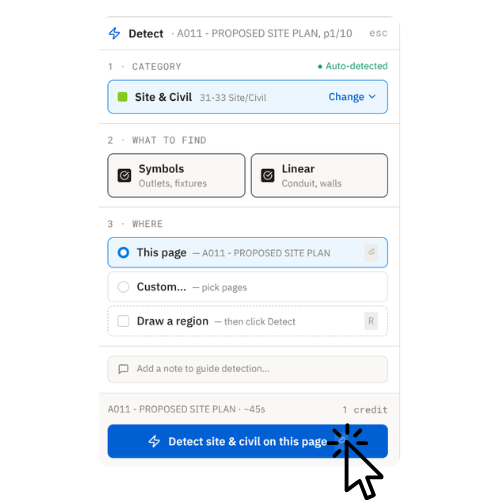
Click Detect site & civil on this page (label matches the auto-detected category). Results land on the page in ~45 seconds.
Detect on all pages of a type
For real estimating, run detection across the whole discipline in one pass. Select All Electrical pages (or whichever category was auto-detected), and BuildVision AI will count across the entire sheet set.
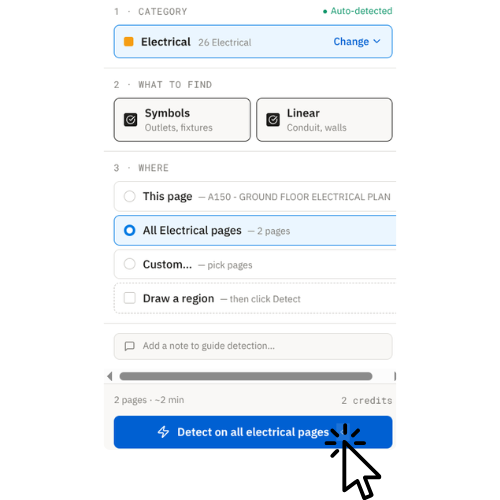
Click Detect on all electrical pages. You'll see the estimated time and credit cost before the run kicks off.
Tip: Add a note in the "Add a note to guide detection" field if you need the model to focus on a specific item (e.g. "only count duplex receptacles, ignore dedicated circuits"). It's free-text and takes plain English.
What happens after detection
Once the run completes, every counted item and measured line appears on the plan as color-coded annotations, grouped by type in the sidebar. From here you can:
- Edit — add, delete, or reclassify items with the manual tools
- Review — jump between pages to verify coverage
- Export — push the takeoff to a quote, or export to Excel / CSV
Next steps
Need help?
- Quick Start Guide — a broader intro if you're brand new
- FAQ — common questions answered
- Contact Support (opens in a new tab) — we respond fast